-
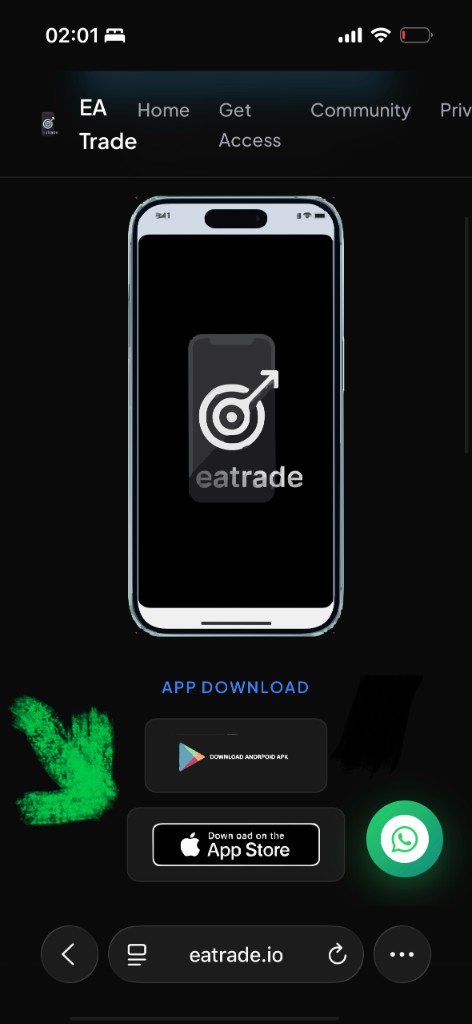
Open EA Trade in Safari
On your iPhone or iPad, open Safari and tap Open App. Wait until the EA Trade start screen loads.
-
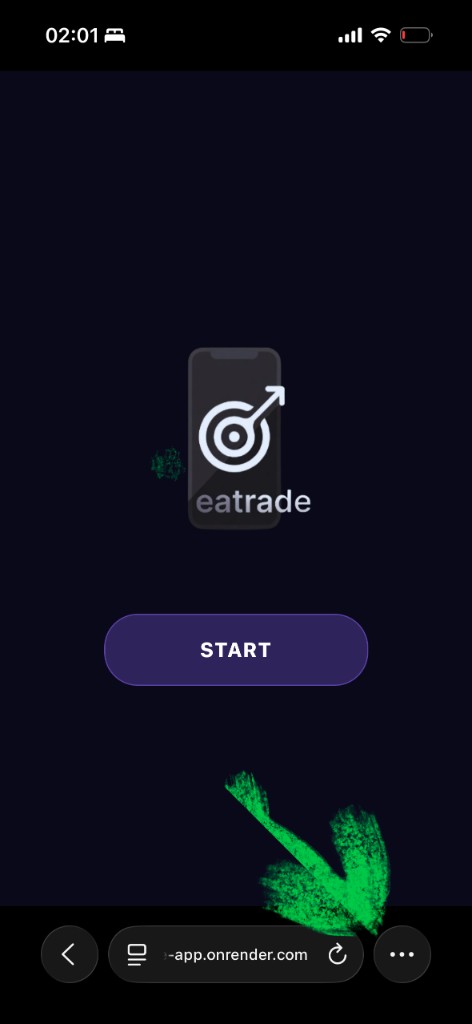
Open Safari’s menu
Tap the ⋯ (three dots) button in Safari’s toolbar (usually bottom-right).
-
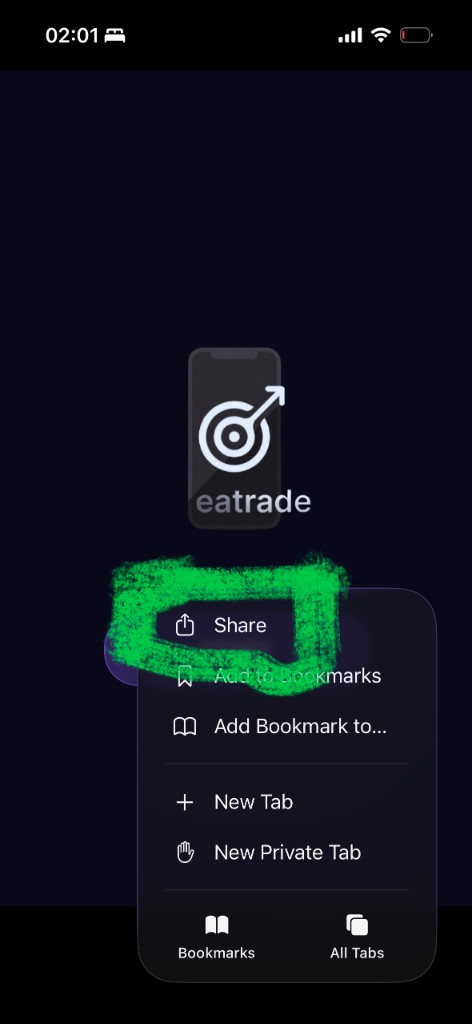
Tap Share
From the menu, choose Share (square with an upward arrow).
-
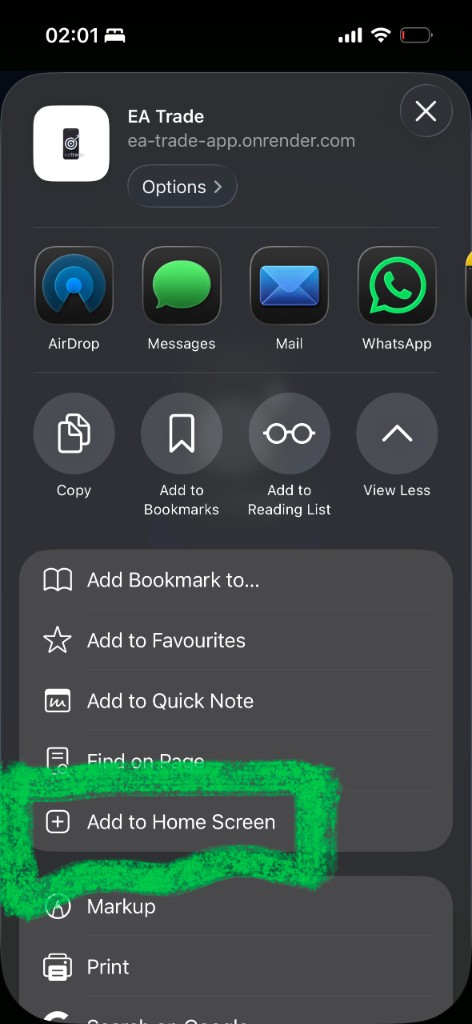
Add to Home Screen
Scroll down in the share sheet and tap Add to Home Screen.
-
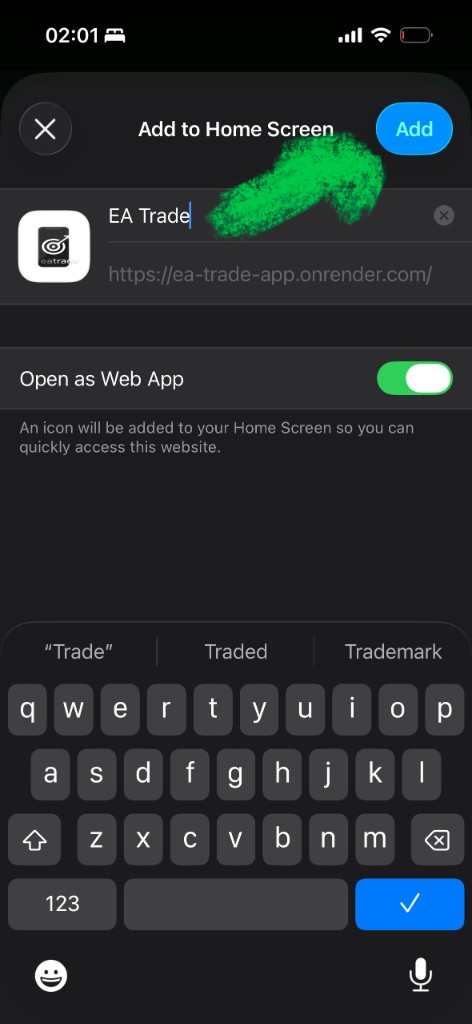
Enable “Open as Web App”, then tap Add
Confirm the name (for example “EA Trade”). Turn on Open as Web App so EA Trade opens fullscreen like a standalone app — then tap Add.
-
Set Auto-Lock to Never (required)
Open the Settings app → Display & Brightness → Auto-Lock → choose Never.
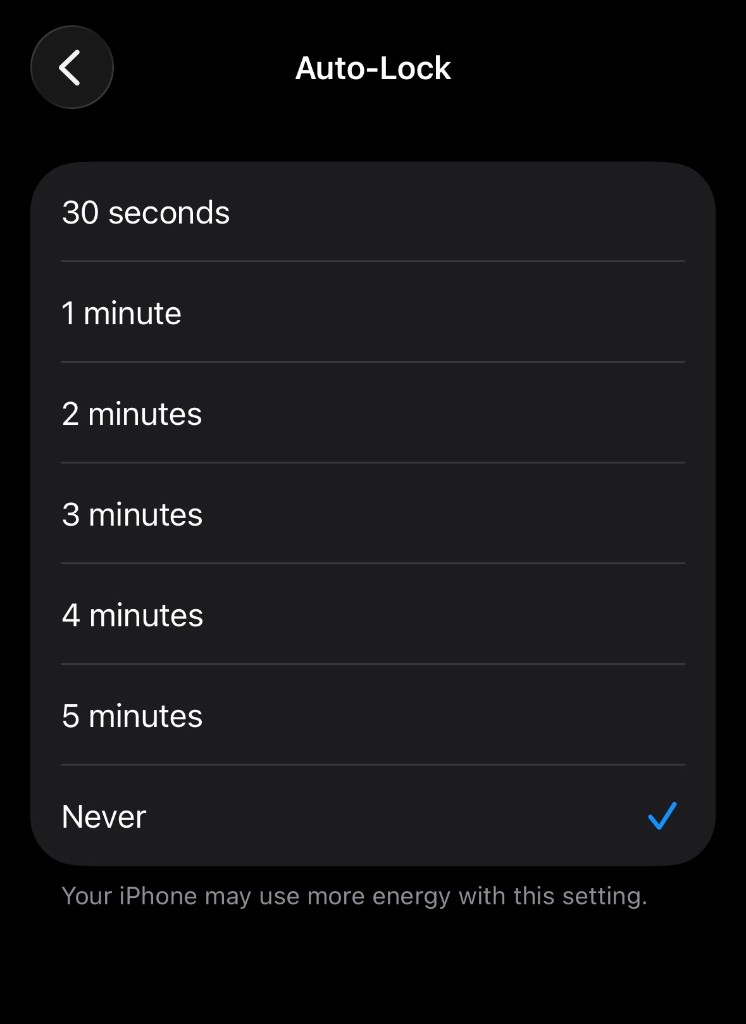
This keeps EA Trade sessions from dropping when your screen locks. Expect higher battery use — plug in for long runs.
Quick checklist
Safari → Open App → menu ⋯ → Share → Add to Home Screen → Open as Web App → Add → Settings → Display & Brightness → Auto-Lock → Never