-
Mac Safari — open EA Trade
-
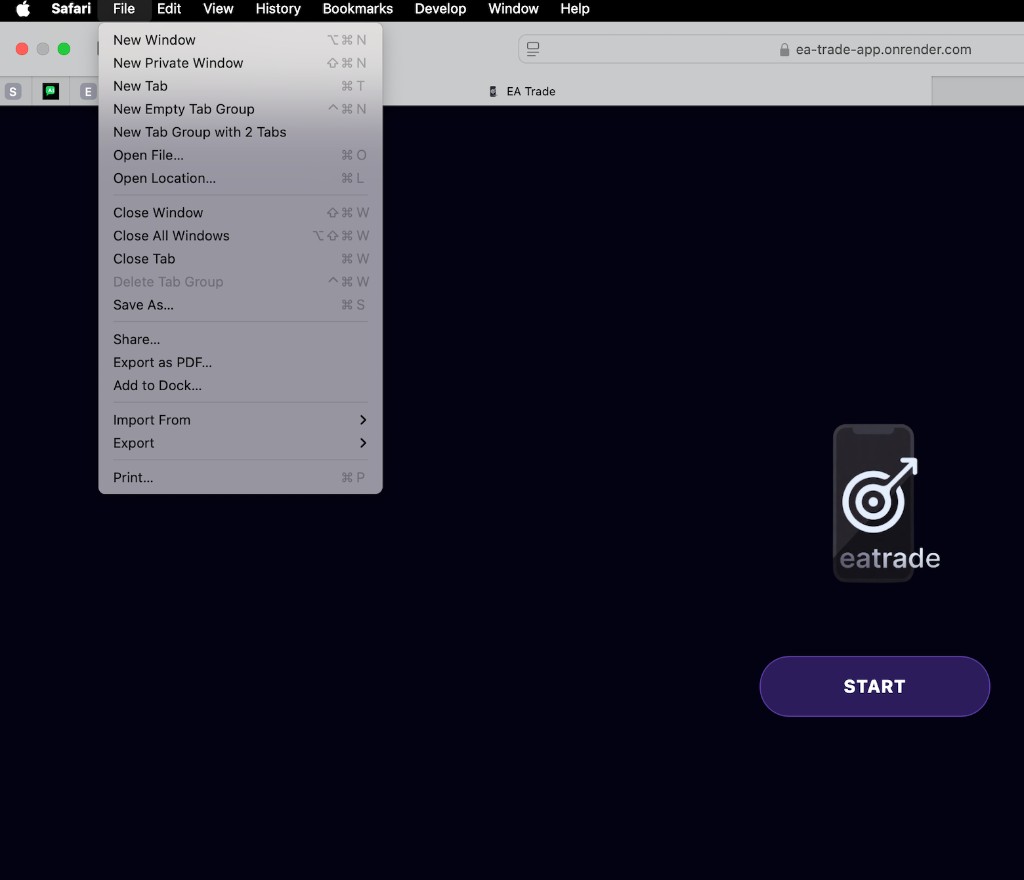
Choose File → Add to Dock…
In the Mac menu bar, click File, then click Add to Dock….
-
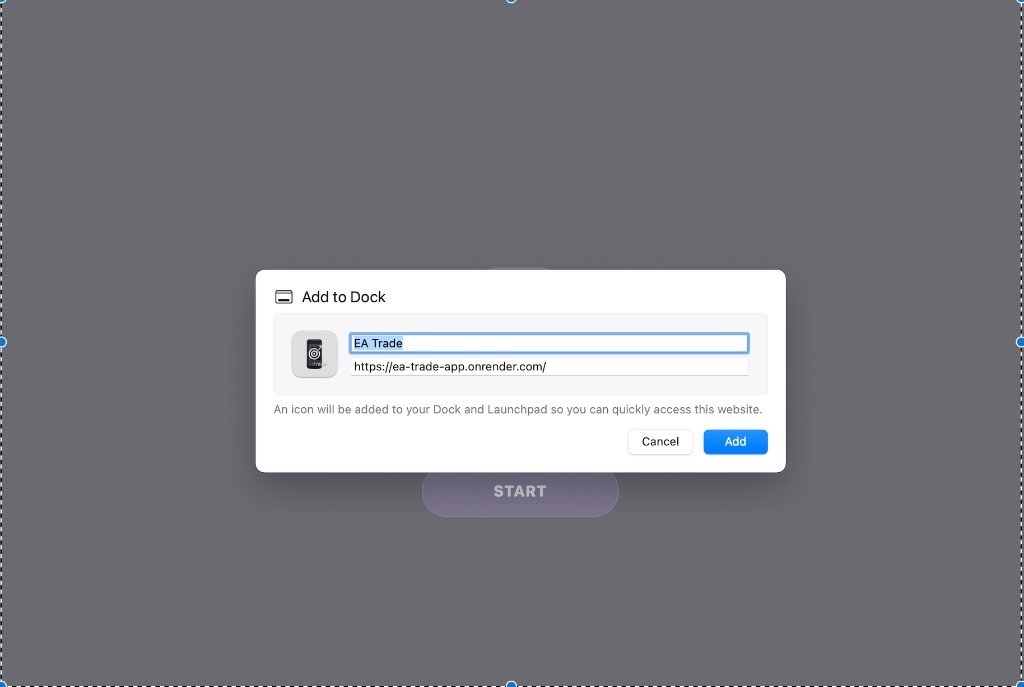
Confirm Add to Dock
Keep the name as EA Trade, then click Add.
An icon is added to your Dock and Launchpad so you can open EA Trade quickly.
-
Open from Dock
Click the EA Trade icon in your Dock (or Launchpad). It opens like a desktop app.
-
Windows / Chrome option
Prefer Chrome on Windows, Mac, or Linux?
Open App in Chrome → More ⋮ → Cast, save, and share → Install page as app… → Install.
Quick checklist
Mac Safari: Open App → File → Add to Dock… → Add
Chrome: Open App → More ⋮ → Cast, save, and share → Install page as app… → Install