-
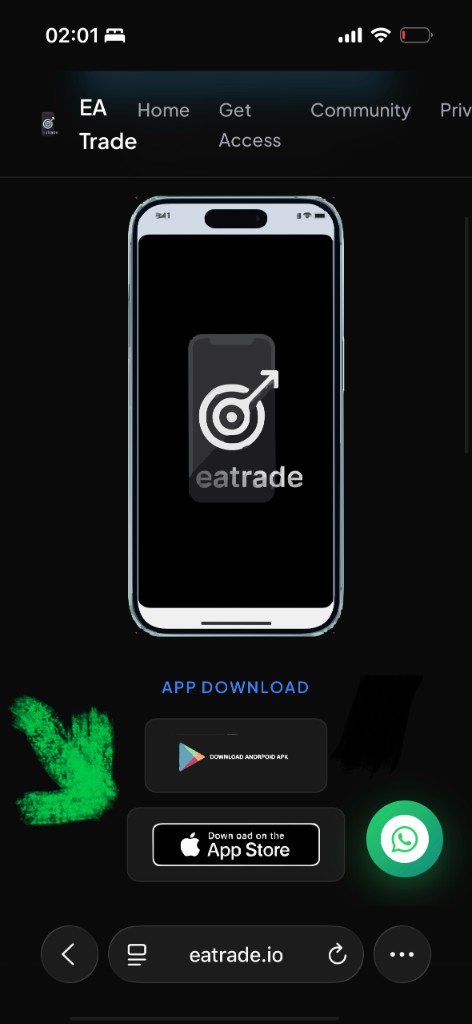
Open EA Trade in Safari
On your iPhone, open eatrade.io in Safari and tap the iOS / web app option to open EA Trade. You should see the EA Trade start or welcome screen.
-
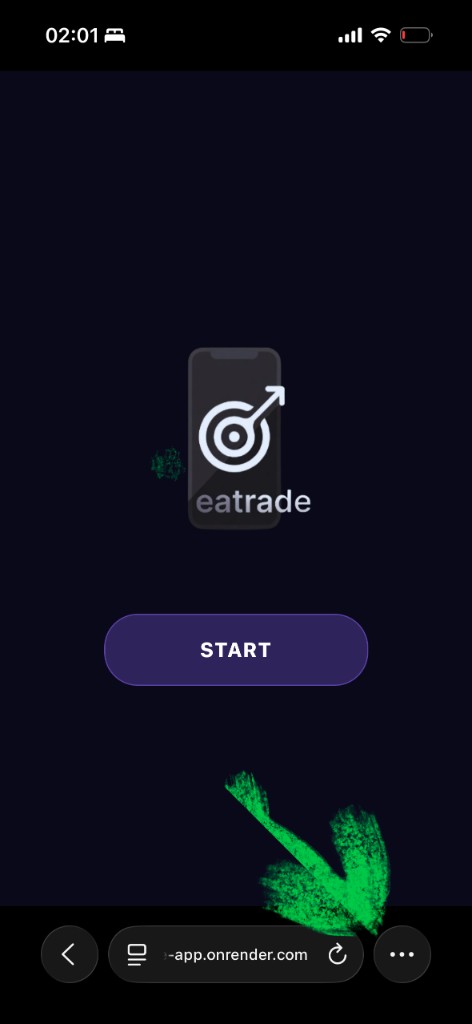
Open Safari’s menu
Tap the ⋯ (three dots) button in Safari’s toolbar (usually bottom-right).
-
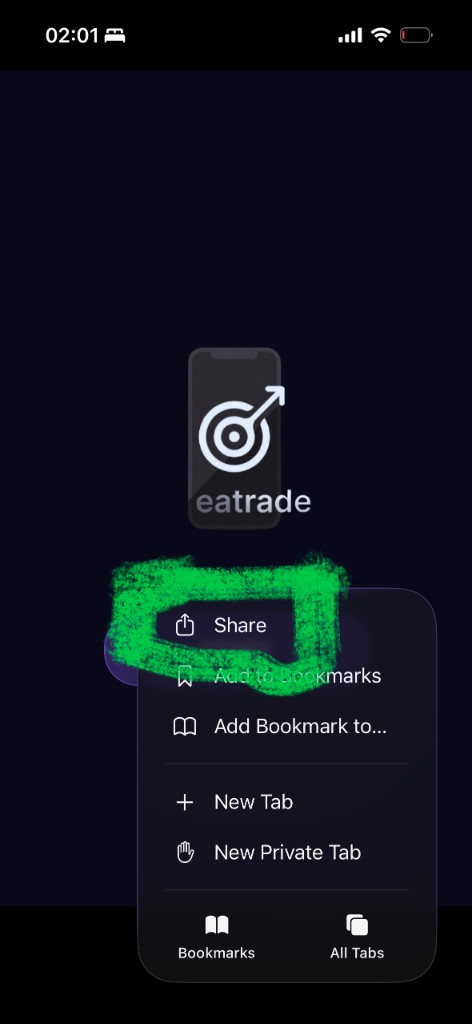
Tap Share
From the menu, choose Share (square with an upward arrow).
-
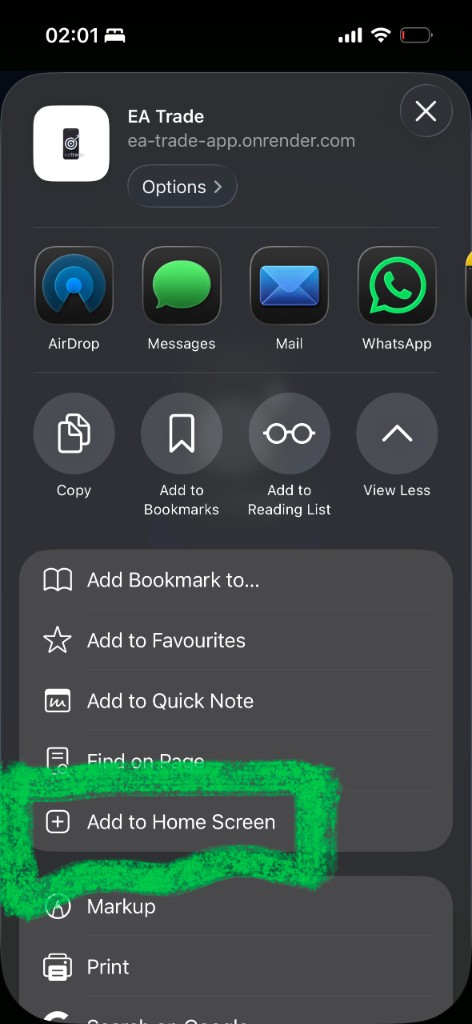
Add to Home Screen
Scroll down in the share sheet and tap Add to Home Screen.
-
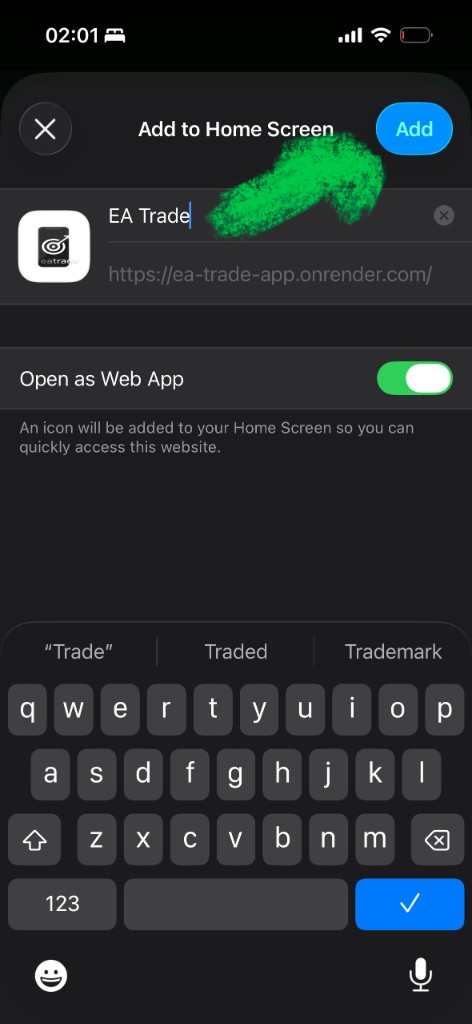
Enable “Open as Web App”, then tap Add
Confirm the name (for example “EA Trade”). Turn on Open as Web App so EA Trade opens fullscreen like a standalone app — then tap Add in the corner.
-
Set Auto-Lock to Never (required)
Open the Settings app → Display & Brightness → Auto-Lock → choose Never.
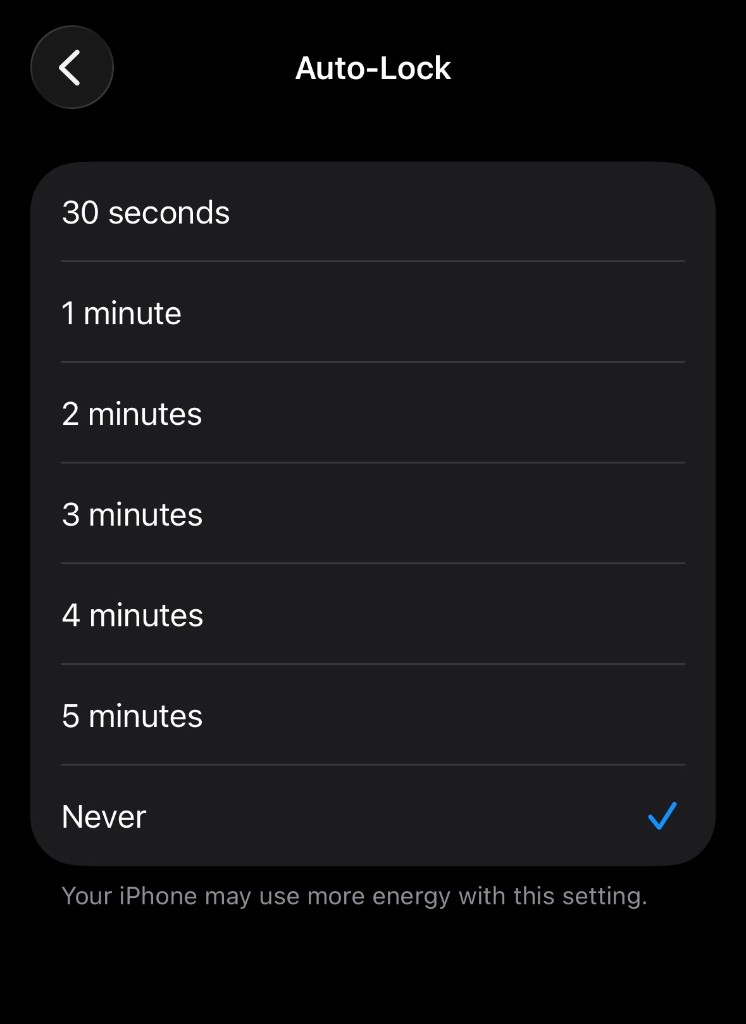
Keeps EA Trade sessions from dropping when your screen locks. Expect higher battery use; plug in for long runs.
Quick checklist
Safari → menu ⋯ → Share → Add to Home Screen → turn on Open as Web App → Add → last: Settings → Display & Brightness → Auto-Lock → Never.